
Quick start
Termivoa takes about five minutes to set up, from install to your first session on the phone.
Status: Private beta (v0.1.0-beta.3). You need an invite to download it.
Before you start
Section titled “Before you start”- Install Tailscale on your computer and your phone, signed in to the same account.
- Install the GitHub CLI (
gh) and rungh auth login.
1. Install pterm
Section titled “1. Install pterm”Follow Install on macOS, Install on Linux or Install on Windows.
2. Run setup
Section titled “2. Run setup”If the install steps did not start it, run pterm setup.
Setup checks first and changes nothing. Then it lists its changes and asks Continue? [y/N].
- Read the list, type
yand press Enter. - A separate question asks to share the page with your Tailscale devices. Type
yif the command shown is correct. - An optional third question is about dev-server previews (port 8443).
Setup starts Termivoa at every login. If you have no project yet, it adds your home folder as the project Home folder. It never uses Tailscale Funnel; the page is never public.
3. Scan the QR code
Section titled “3. Scan the QR code”Setup ends with a QR code.
- Scan it with the phone camera and open the link.
- Type a name for the phone and tap Pair this device.
The link works once and expires after two minutes. Run pterm pair for a new one.
4. Approve the code
Section titled “4. Approve the code”The phone shows a code, such as 485-431. Your computer shows its code and asks Approve? [y/N].
Type y if the codes match, n if not.
![Your computer prints “Phone ‘My iPhone’ shows code 482-913. Approve? [y/N]” and your phone asks “Does your computer show this code?” above the same six digits; a hand-written note says: same six digits? type y. Below it: No match? Type n.](/_astro/illo-pairing.C5TM0Wjh_f4RkY.webp)
On iPhone, tap Share, then Add to Home Screen, to get notifications.
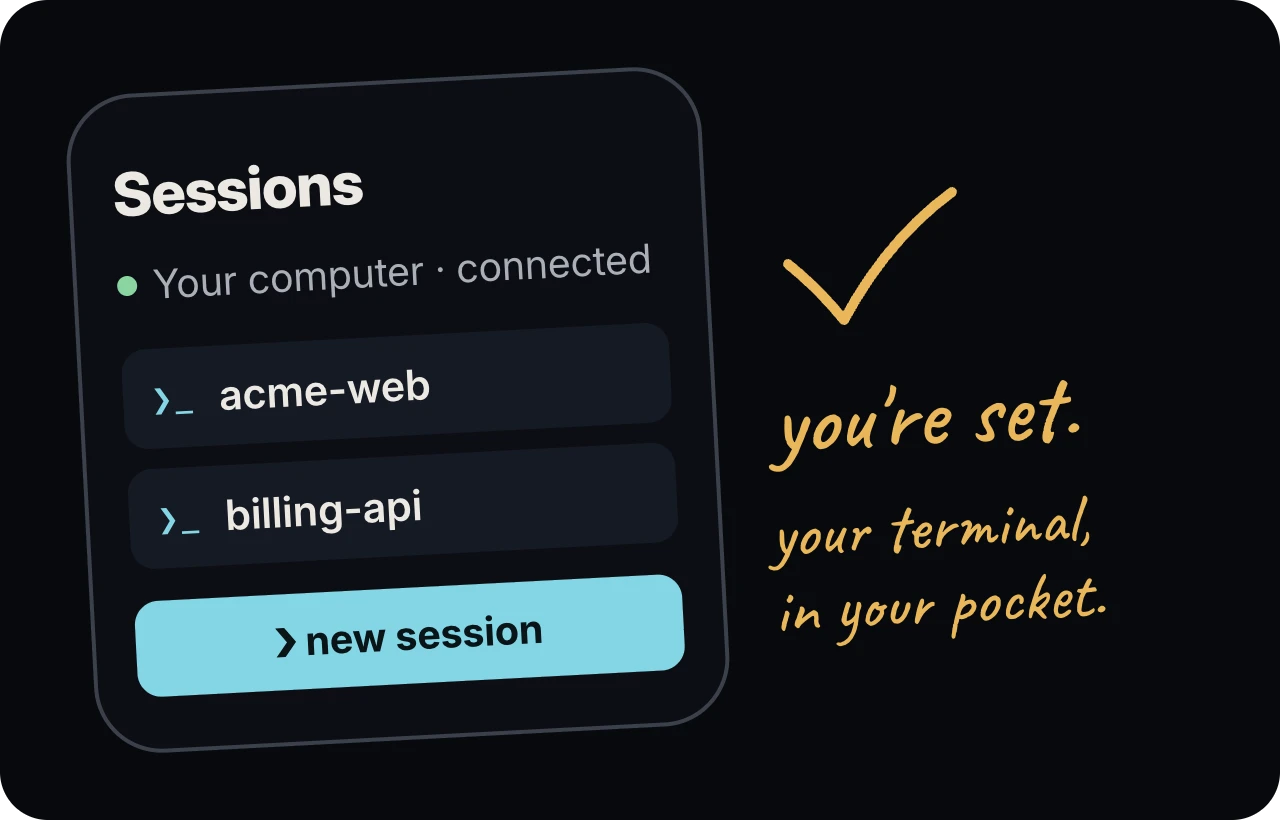
5. Start your first session
Section titled “5. Start your first session”- Tap new session.
- Pick a project and a shell.
- Optional: in run first, type a command such as
claude. - Tap start session.
- Tap Take control to type.
Closing the app does not stop the session.
Common questions
Section titled “Common questions”I answered no to the Tailscale question. How do I share the page later?
Section titled “I answered no to the Tailscale question. How do I share the page later?”Run pterm setup again and answer y, or run:
tailscale serve --bg --https=443 http://127.0.0.1:8787How do I check that everything works?
Section titled “How do I check that everything works?”Run pterm doctor. It changes nothing and never prints secrets.
Next steps
Section titled “Next steps”- Pair your phone: add or remove phones.
- Sessions and Live terminal.
- Troubleshooting if something fails.