
Live terminal
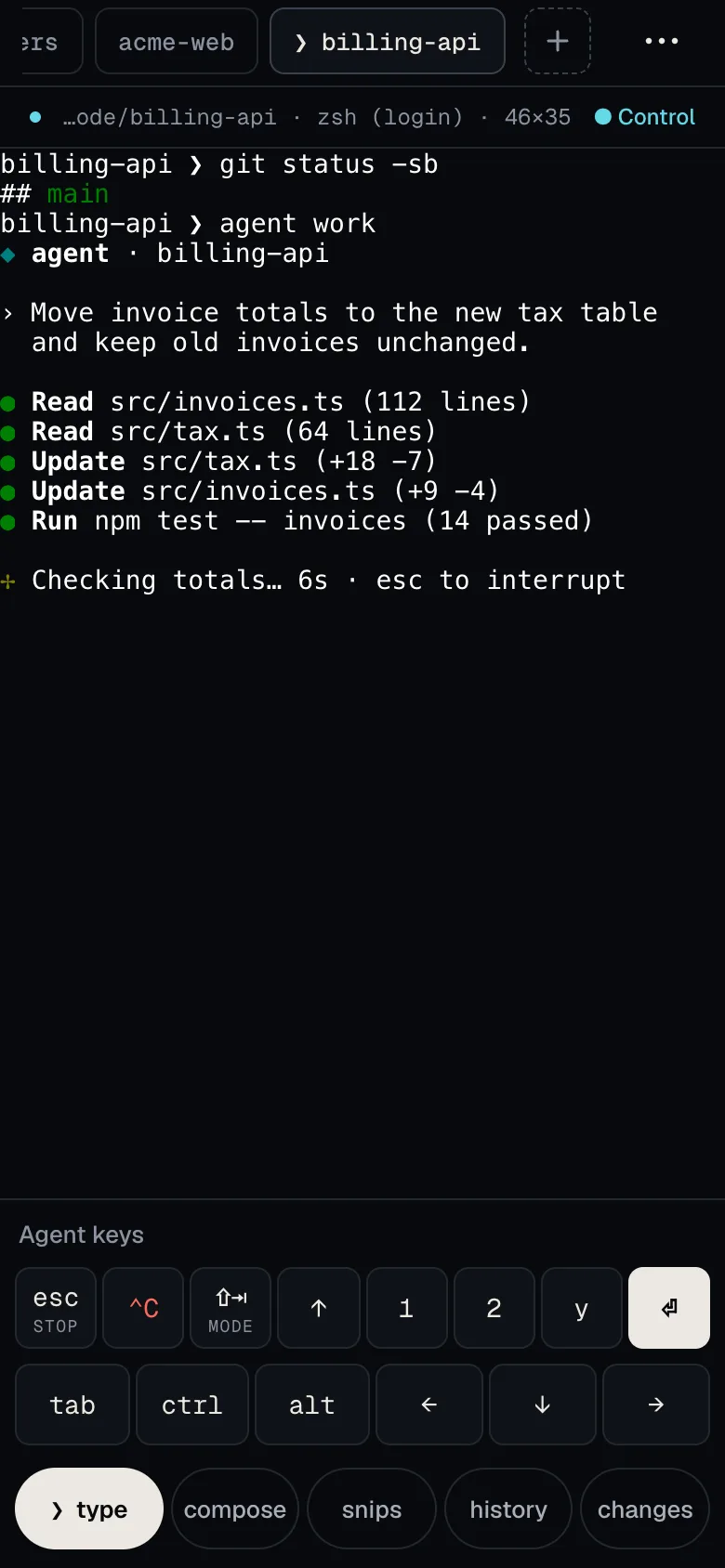
Termivoa’s live terminal is the screen of one session, where you read output and type from your phone. Open it from the Sessions list or Wall.
Take control to type
Section titled “Take control to type”Many devices can watch a session; only the one with control can type.
- A session opens read-only, showing Read-only and who has control.
- Tap Take control. The screen shows ● Control; the other device becomes read-only.
- To give it away, open the session menu (⋯) and tap Release control.
Switch sessions with the tabs
Section titled “Switch sessions with the tabs”The tab bar at the top shows your running sessions. Tap a tab to switch; each opens read-only. A dot marks new output; an amber dot means it waits for you. + starts a new session.
Use the agent keys and key bar
Section titled “Use the agent keys and key bar”With control, the dock under the terminal shows one-tap agent keys and a key bar with keys a phone keyboard lacks.
| Key | What it sends |
|---|---|
esc |
Escape. Stops a coding agent. |
⌃C |
Only Ctrl+C, even when ctrl is on. |
⇧⇥ |
Shift+Tab. Changes the agent’s mode. |
1, 2, y |
That character. Picks an agent option. |
⏎, tab |
Enter, Tab. |
ctrl, alt |
Holds Ctrl or Alt for the next key. |
↑, ←, ↓, → |
Arrow keys. |
▲, ▼ |
Scrolls a full-screen app. Shows only while one is open. |
The action buttons are type (opens the phone keyboard), compose, snips, history and changes (see Changes).
With the phone keyboard open, all keys fold into one scrolling row, and the terminal keeps its size so full-screen agents do not redraw. ↓ follows ↑ there.

Write longer text with compose
Section titled “Write longer text with compose”Tap compose for long or multi-line text. Nothing is sent until Send ⏎, which pastes it and presses Enter. Text with more than one line asks before it sends. Compose can also add a photo or your voice.
Save and send snippets
Section titled “Save and send snippets”Snippets are prompts and commands you send with one tap, saved on this phone only. Tap snips to open the Snippets sheet.
- Save: tap + New, fill in Title and Text to send, pick Press Enter after pasting to run it at once, and tap Save.
- Send: tap it (needs control). A snippet with more than one line asks first.
- Change or delete: tap Edit, then the snippet.
- This project: your project’s own commands. See Project buttons.
Scroll the terminal
Section titled “Scroll the terminal”- Full-screen apps such as Claude Code, Codex,
vimorless: swipe on the terminal or tap▲/▼(needs control). - A normal shell: pull down, or tap history.
Copy from history
Section titled “Copy from history”- Tap history.
- Select text.
- Tap Copy N lines, for example Copy 3 lines.
- Tap Done.
Change the text size
Section titled “Change the text size”In the session menu (⋯), open Settings and tap A− or A+ under Terminal text size.
Move between desktop and phone
Section titled “Move between desktop and phone”Open the same session in a terminal on your computer. pterm list shows the IDs:
pterm attach <session-id> # watchpterm attach --control <session-id> # typePress Ctrl+] to leave; the session keeps running. When you take control on the phone, the desktop becomes read-only, and the other way around.
Common questions
Section titled “Common questions”Why did I lose control?
Section titled “Why did I lose control?”Another device took control, or you locked the phone or switched apps. Tap Take control again.
How do I send Ctrl+C?
Section titled “How do I send Ctrl+C?”Tap ⌃C, or tap ctrl and then type c.