
Wall
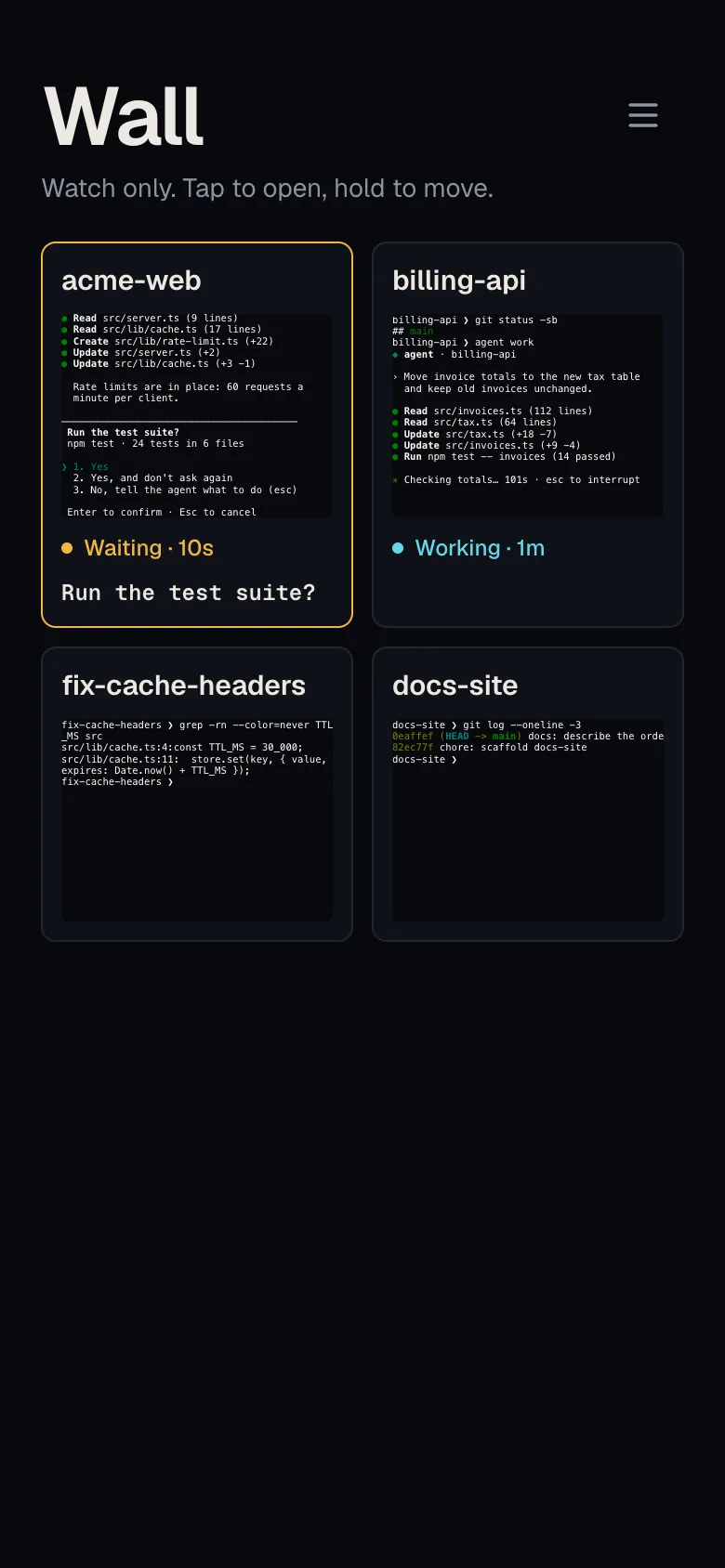
Termivoa shows every running session as a small live screen on one page, the Wall.
Open the Wall
Section titled “Open the Wall”- On the Sessions list, tap Wall (the grid icon) at the top. The tiles update live.
- Tap a tile to open that session in the live terminal.
- To go back, tap the list button at the top, or use the back gesture.
If no session runs, the Wall shows No running sessions. and a new session button.
What does a tile show?
Section titled “What does a tile show?”Each tile shows the session’s screen, scaled to fit and following the newest line. You can see output, colors and prompts. Each tile also shows:
- the session name;
- the status badge: Working, Waiting or Your turn;
- the question, when an agent waits for you;
- an amber dot in the corner while the tile reconnects.
At most 4 tiles are live at once, and each updates up to 5 times per second. Tiles off the screen, tiles over that limit, and all tiles while the app is in the background keep their last screen and show Paused.
A tile over the limit that was never live still shows a small picture of its screen. Termivoa connects to it once, for a moment, takes one picture, and marks the tile Paused. It does this for one tile at a time, and only while the Wall is open on screen. If that one try fails, the tile shows only the session name and Paused; it goes live when one of the 4 live tiles frees its place.
Which tiles come first?
Section titled “Which tiles come first?”Tiles that wait for you come first, with an amber border. Working sessions come next, then the rest. Ended sessions are not shown; a line under the tiles counts them.
Arrange the tiles
Section titled “Arrange the tiles”- Touch and hold a tile until it lifts.
- Drag it to its new place. Drag to the top or bottom edge to scroll.
- Let go.
A quick swipe still scrolls, and a quick tap still opens the session. With a keyboard, focus a tile and press Alt and an arrow key to move it one place.
The order is saved on this phone only. New sessions go after the tiles you arranged. To go back to the default order, tap Reset order under the tiles.
Why can I not type on the Wall?
Section titled “Why can I not type on the Wall?”Tiles only watch. They never take control, type, or change the terminal size. To type, tap the tile, then tap Take control. The tiles connect only while the Wall is open.