
Changes
The Termivoa Changes view shows what a coding agent changed in your project: the changed files and a red and green diff for each.
What does Changes show?
Section titled “What does Changes show?”The uncommitted changes in the session folder’s git project: what git status and git diff show, plus new files that git does not ignore. You can see them without control. Changes never edits files; with control, you can commit and push.
See the changed files
Section titled “See the changed files”- Open the session.
- Tap changes in the dock. When you only watch, tap Changes under Take control.
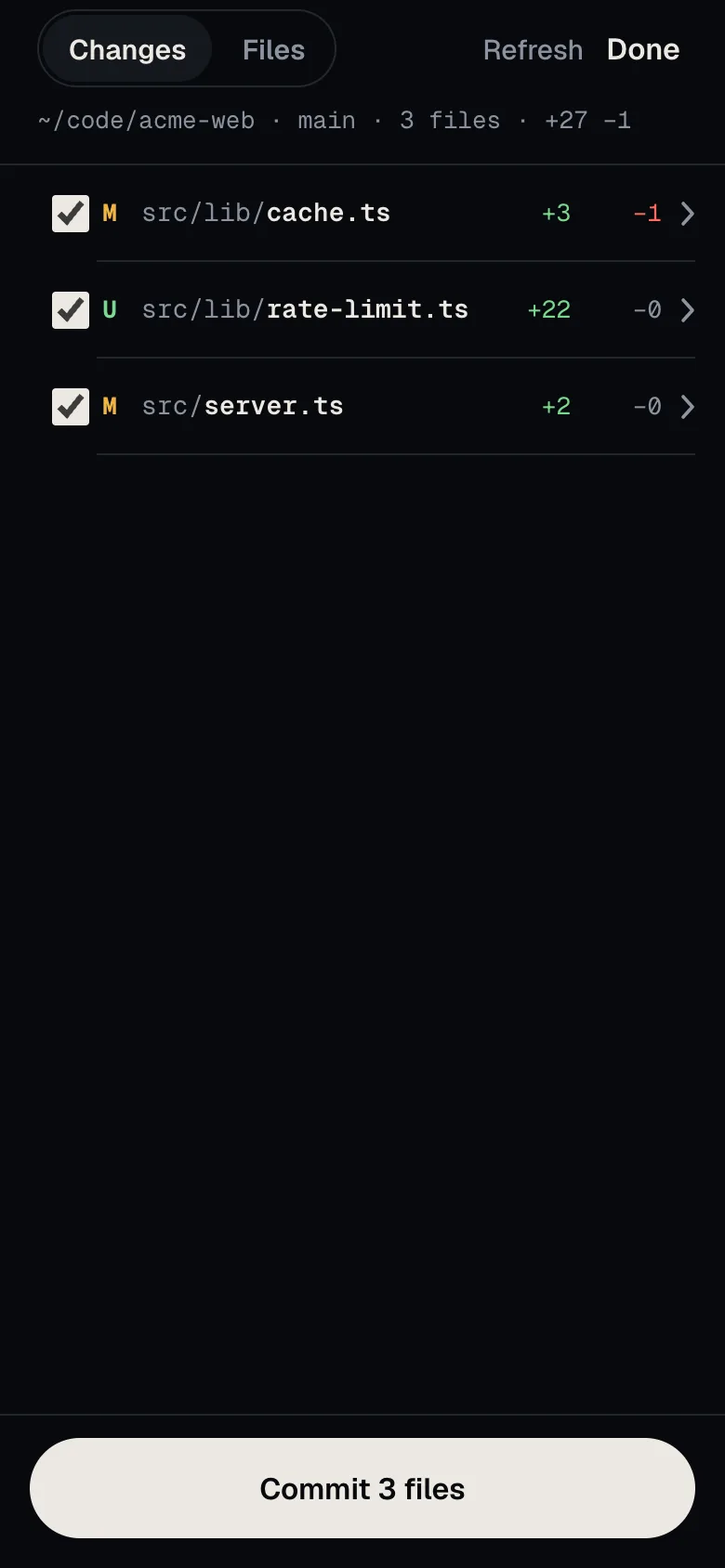
- The top line of the list shows the folder, branch, file count, and lines added and removed.
Each row shows a change letter, the path, and the lines added (green) and removed (red).
| Letter | Meaning |
|---|---|
| M | Modified |
| A | Added |
| D | Deleted |
| R | Renamed |
| U | New, not yet added to git (untracked) |
| T | Type changed |
Refresh reads the changes again. Done goes back to the live terminal.
See one file
Section titled “See one file”Tap a file to see its diff. Added lines are green, removed lines are red, and the numbers at the left are the old and new line numbers. The back arrow returns to the list.
Ask the agent about a file
Section titled “Ask the agent about a file”- Open a file.
- Tap Ask agent about this file. The compose sheet opens with
@and the file path. - Write your question and tap Send ⏎. Sending needs control.
Ask about specific lines
Section titled “Ask about specific lines”- Open a file and tap a line in the diff.
- To pick a range, tap a second line. A range has 20 lines at most and stays in one part of the diff.
- Tap Ask agent about line 42 or Ask agent about lines 40–42. The compose sheet opens with the path, line numbers and picked lines.
- Write your question under the lines and tap Send ⏎.
To clear, tap a picked line or Clear. The numbers are the new line numbers, or the old ones when you pick only removed lines.
Commit and push
Section titled “Commit and push”You need control. Without it, the list shows Take control to commit.
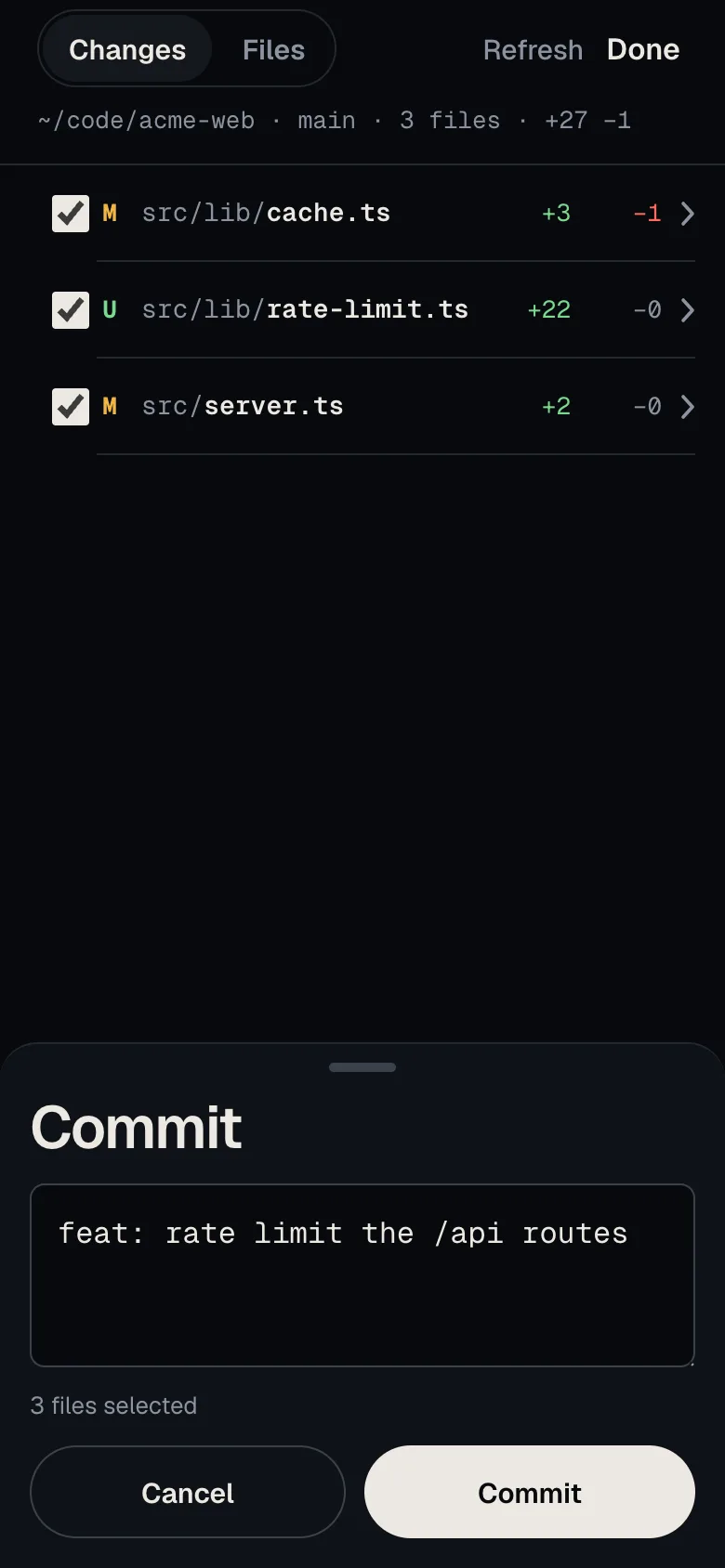
- Open Changes. All files are ticked. Untick the ones you do not want in the commit.
- Tap Commit N files.
- Check the message. Termivoa writes a first message from the file names, for example
Update app.js and 4 more files. - Tap Commit.
- After Committed, tap Push, then Push again to confirm.
- After Pushed, tap Open pull request if the remote gave a link.
If git fails, the sheet shows its output, such as a hook error. The list reloads after each commit. If the connection stops during a commit or push, Termivoa does not send it again. Check the list before you retry.
What are the limits?
Section titled “What are the limits?”- Only the first 300 changed files are shown. Run
git statusto see all. - A very long diff is cut short, and the screen says so.
- If the folder is not in a git project, Changes says so.
Common questions
Section titled “Common questions”Why does a file show no diff?
Section titled “Why does a file show no diff?”Binary files, such as images, are not shown. If the file has no changes anymore, tap Refresh.
Does push ask for a password on the phone?
Section titled “Does push ask for a password on the phone?”No. Push uses your normal git and ssh settings on the computer.