
Files
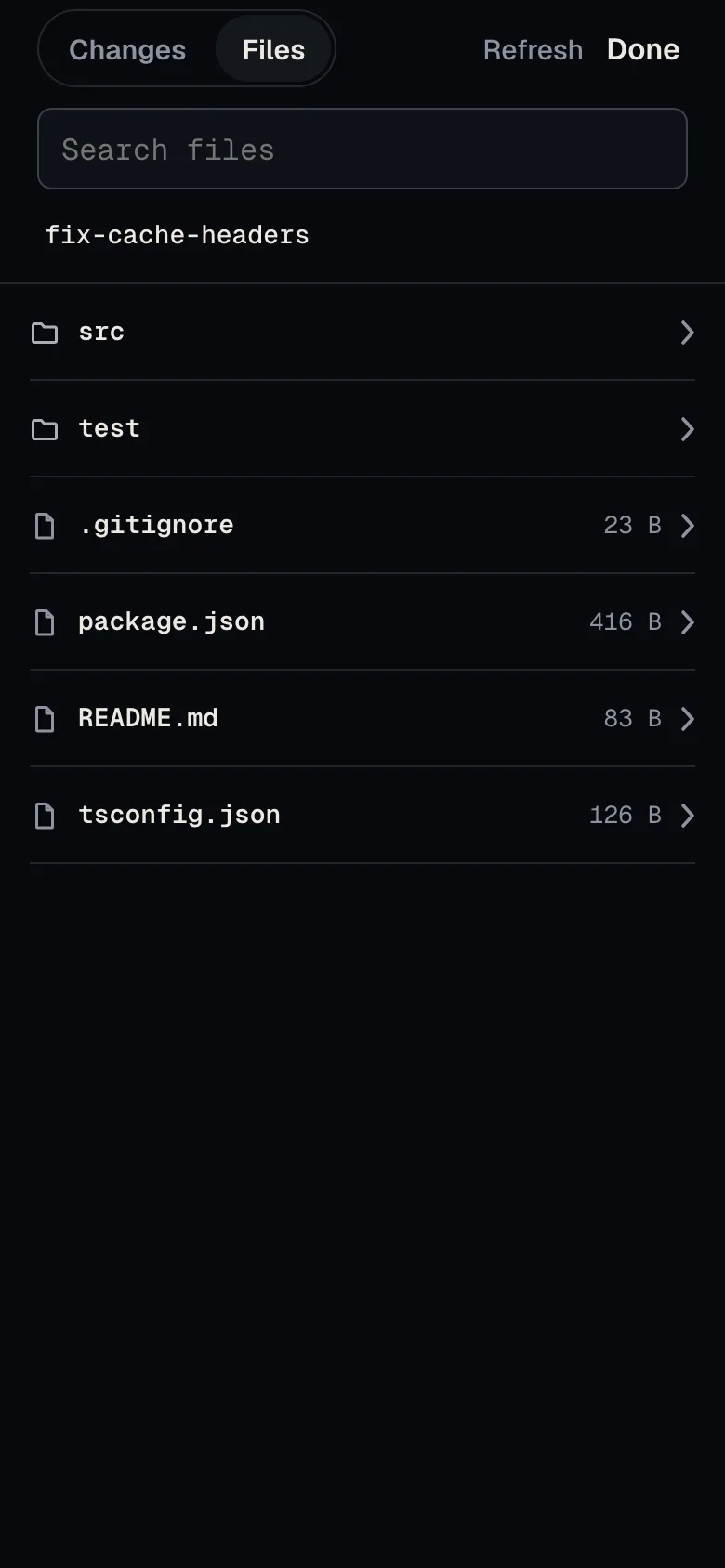
Termivoa’s Files tab shows the project folder of a session on your phone: browse folders, search file names, and read any text file. It only reads; it never changes a file.
Open Files
Section titled “Open Files”- In a session, tap changes in the dock, or Changes when you only watch.
- Tap Files at the top.
You do not need control. Termivoa remembers the last tab for each session while the app is open.
Which folder does Files show?
Section titled “Which folder does Files show?”Files starts at the top of the git repository that holds the session’s current folder. When the folder is not in a repository, Files starts at that folder. Files never shows anything above that point.
- Folders come first, then files, A to Z. Each file shows its size.
- The
.gitfolder is never shown. - A link that points outside the project is dimmed and does not open.
- A folder shows at most 1000 entries.
Tap a folder to open it. Tap a name in the path at the top to go back up.
Read a file
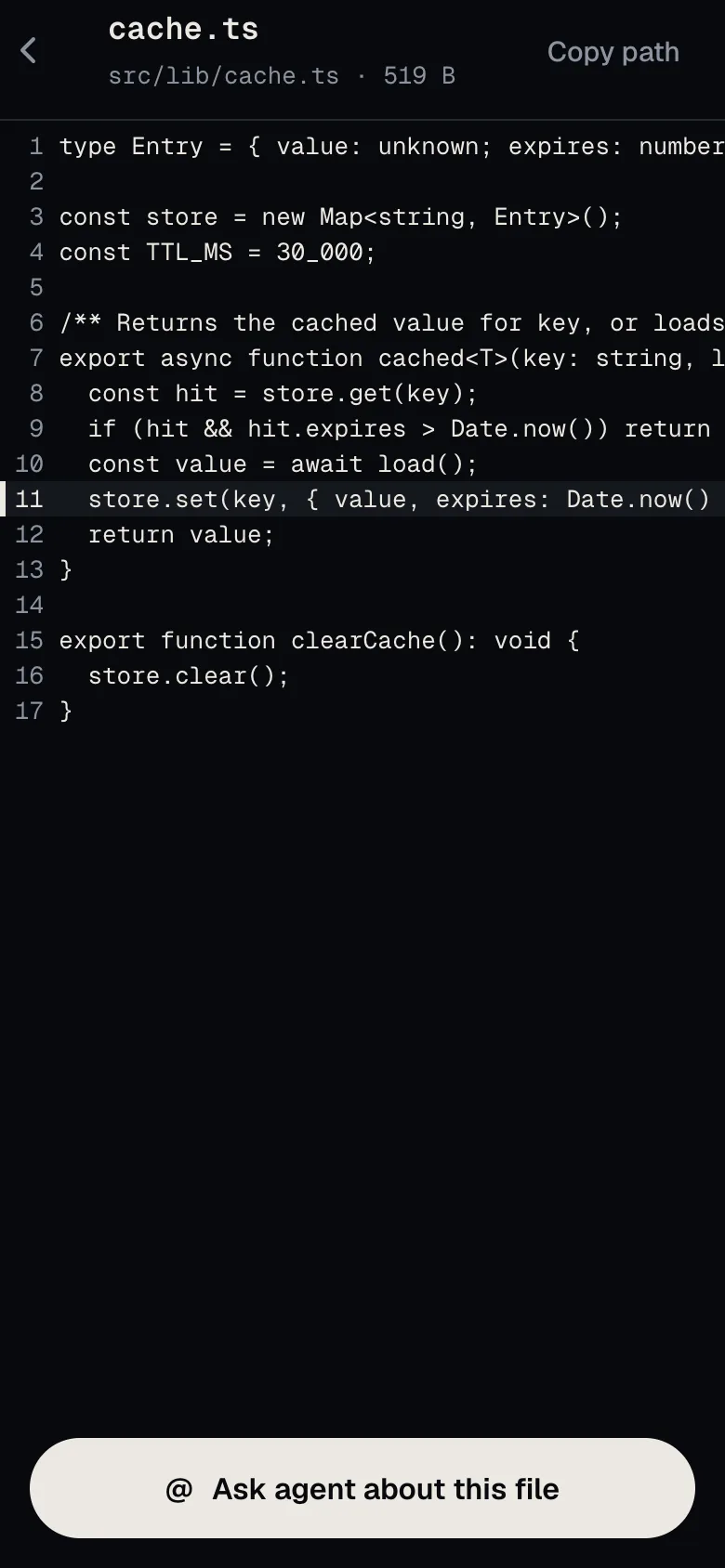
Section titled “Read a file”Tap a file to read it with line numbers. Long lines scroll sideways and never wrap.
| You see | What it means |
|---|---|
| This file is not text. | A binary file, such as an image. |
| The file is cut short here (256 KiB). | Only the first 256 KiB are shown. See the rest on your computer. |
| This file is over 50 MiB, too large to show. | Termivoa does not open it. |
| This file is not there anymore. | It was moved or deleted. Tap Show its folder. |
Copy path (top right) copies the file’s path in the project. Ask agent about this file opens compose with @path, so you can ask the agent about it. Nothing is sent until you tap Send ⏎.
Search for a file
Section titled “Search for a file”Type in Search files. Termivoa finds every file whose path contains your text, with names that match first. It shows up to 200 results.
In a git repository, search skips files that git ignores, such as node_modules. Outside a repository, it skips .git and node_modules.
Open a file from the terminal
Section titled “Open a file from the terminal”Tap a file path in the terminal, such as src/app.ts:42, to open that file at that line. This works for paths with a line and column (src/app.ts:42:7), the TypeScript form (src/app.ts(42,7)), relative paths (./src/app.ts) and full paths inside the project. A tapped folder opens in the list.
- A swipe that starts on a path scrolls as usual; only a tap opens it.
- Web addresses, version numbers and paths outside the project are not links; a tap there works as a normal tap.
Common questions
Section titled “Common questions”Can Files change or delete my files?
Section titled “Can Files change or delete my files?”No. Files only lists, searches and reads. To change a file, ask the agent or type in the terminal.
Why do I not see a file that is on my computer?
Section titled “Why do I not see a file that is on my computer?”Files shows the project of this session only. Check that the session is in the right folder (the path above the terminal), then tap Refresh. If your computer does not answer within 15 seconds, Files says it could not read the folder; tap Retry. Search skips files that git ignores; browse the folder to see them.
Who can read my files?
Section titled “Who can read my files?”Only your paired phones, over your private Tailscale network. See Security.