
Sessions
Termivoa shows every session on your computer in the Sessions list, the first screen after pairing. A session is one running shell or coding agent, such as Claude Code or Codex.
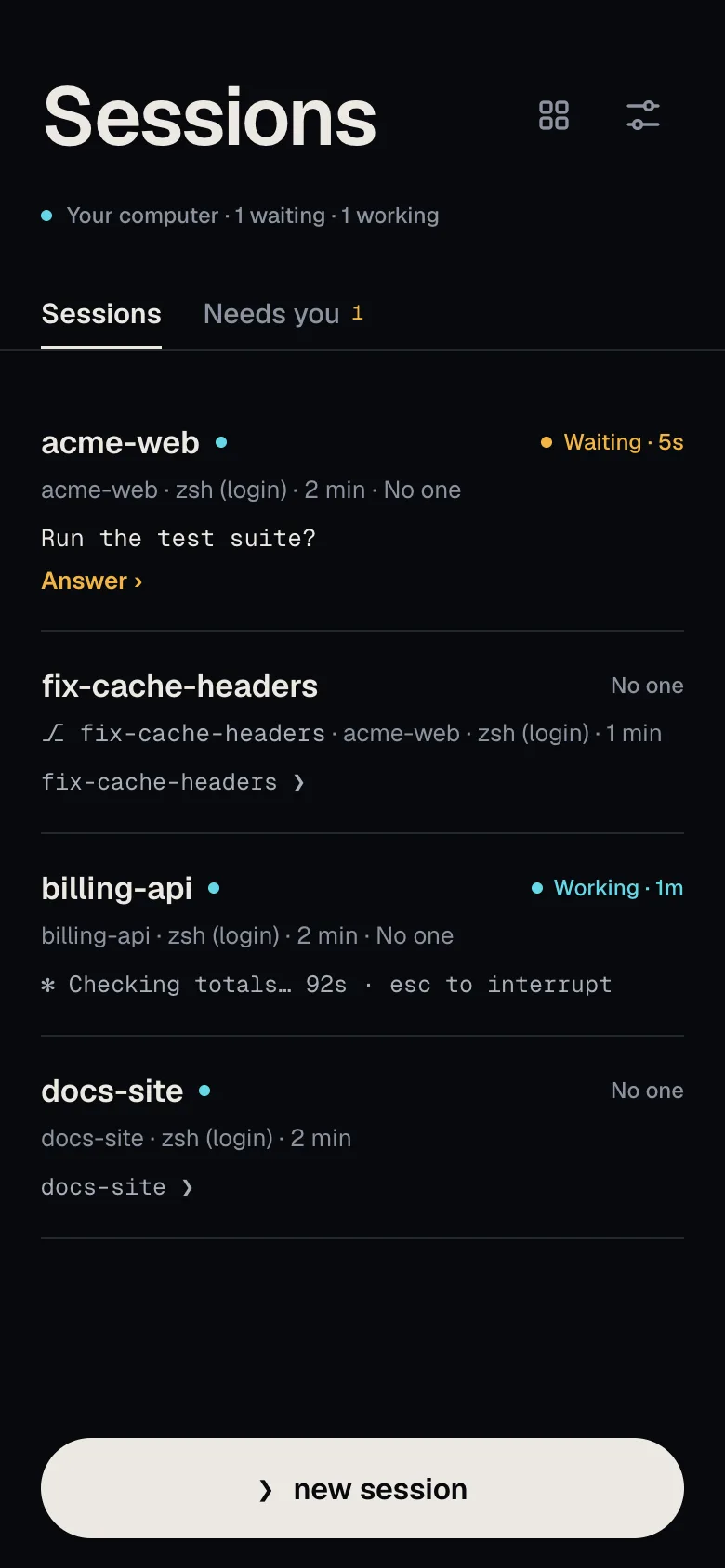
Read the Sessions list
Section titled “Read the Sessions list”Each row shows:
- the session name, which follows the folder after
cdunless you renamed the session; - the project, shell and age, for example “Home · zsh · 35 min”;
- the last line of output, or the question when an agent waits for you;
- a dot for new output since this phone last opened it.
Sessions that wait for you are at the top. Tap a row to open it in the live terminal, which shows the session’s full folder path.
Start a session
Section titled “Start a session”- Tap new session, or + in the live terminal tab bar.
- Pick a project (a folder where new sessions start) and a shell.
- Optional: in run first, type one command, such as
claudeorcodex. - Tap start session.
The run first command is typed once, with Enter, only if no one else has control. Otherwise Termivoa sends nothing and says why. Save as preset keeps your choices under Launch for a one-tap start. Add projects on the computer with pterm project add <folder>.
What do the status badges mean?
Section titled “What do the status badges mean?”| Badge | Meaning |
|---|---|
| Working | Busy, or printed output in the last few seconds. |
| Waiting | An agent or [y/N] prompt waits for you. The row shows the question and Answer ›. |
| Your turn | An agent finished and you have not opened the session since. |
| Exited | The shell ended, with its exit code if any, for example Exited · 1. |
| Lost | The computer restarted, you logged out, or the broker (the background process that owns sessions) stopped. |
A plain shell at its prompt shows no badge. Waiting sessions can notify your phone. After time away, a recap card says what happened.
Rename a session
Section titled “Rename a session”- In the session, open the session menu (⋯).
- Tap Rename…, type a new title and tap Save title.
End a session
Section titled “End a session”- Open the session menu (⋯) and tap Terminate….
- Tap Terminate session, or Keep running to cancel. Keep running comes first, and a tap in the first moment does nothing, so a double tap cannot end a session.
This stops the program and everything it started. On the computer, get the ID from pterm list and run pterm terminate <session-id>.
Common questions
Section titled “Common questions”Does a session stop when I close Termivoa?
Section titled “Does a session stop when I close Termivoa?”No. It runs on the computer until the program exits, you end it, or it is lost.
Why does it say “This session is gone”?
Section titled “Why does it say “This session is gone”?”The session ended and cannot come back or open. It stays on the list as Exited or Lost. Start a new session. Termivoa never runs old commands again.