
Use several computers
Termivoa lets one phone app use several computers, for example a Mac, a Linux server and a VPS, with one Sessions list and one Wall.
How does it work?
Section titled “How does it work?”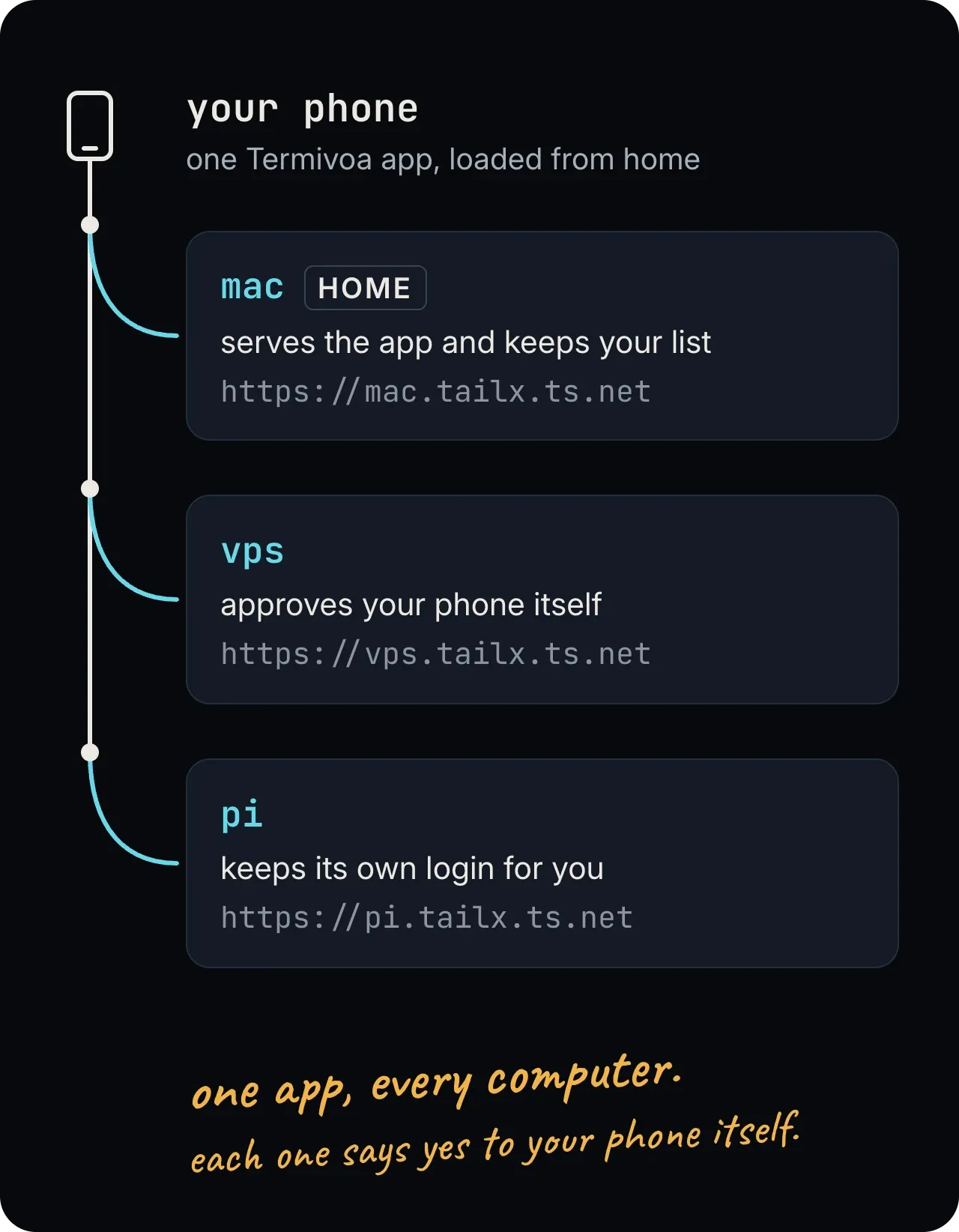
| Word | What it means |
|---|---|
| Home | The computer whose address is on your Home Screen. It serves the app. |
| Peer | Any other computer you add. The app talks to it directly; nothing goes through home. |
| Via | The home address a peer accepts your phone from. pterm devices shows it in the VIA column. |
Each computer runs its own pterm, approves your phone itself, keeps its own login cookie for it, and can revoke it itself.
How do I choose home?
Section titled “How do I choose home?”Pick a computer that is always on and safe, such as a small server. Not the laptop where you run npm install, agents and dev servers.
| Rule | Why |
|---|---|
| Only Termivoa on port 443 of each computer’s Tailscale address | Any other Tailscale Serve handler there could control Termivoa. pterm setup refuses, and pterm doctor shows how to move it. See Setup refuses other Tailscale Serve handlers. |
| Changing home later means starting over | A new home is a new app, so you add every peer again. |
How do I add a computer?
Section titled “How do I add a computer?”Start a wait on the new computer, then tap Add next to it in the app. You need pterm setup on the new computer, and both computers in the same tailnet with the same Tailscale user.
-
On the new computer (here
vps), in a terminal:- If Termivoa is not set up there yet, run
pterm setup. At Is Termivoa already on your phone? type2(Yes, add this computer to it), then pick home. The list shows each computer’s full address and system, for example1) mac — https://mac.tailx.ts.net (macOS). Pick the computer whose address your Termivoa app opens. - If it is set up, run
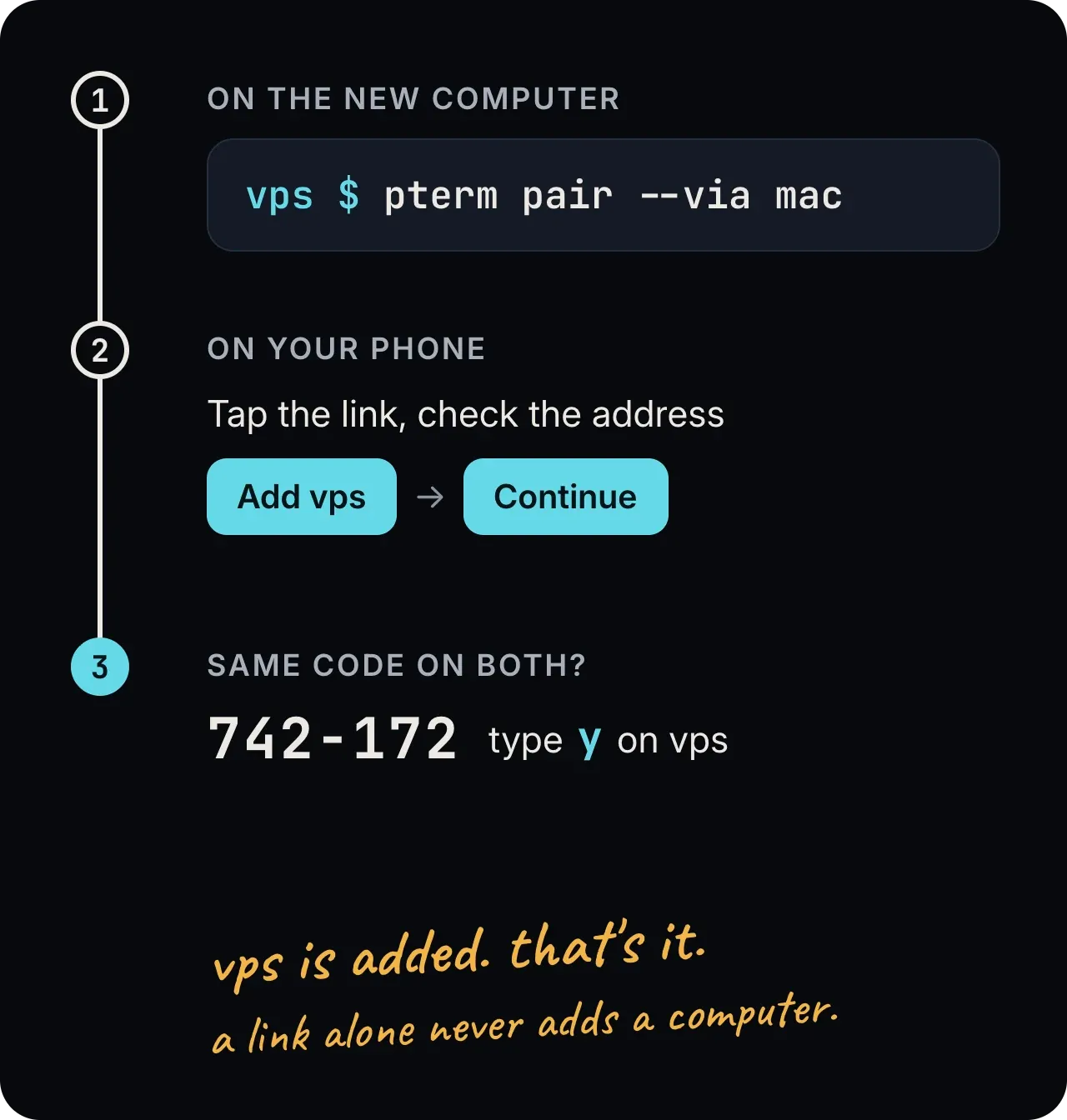
pterm pair --via mac. Use home’s machine name, or its full address such ashttps://mac.tailx.ts.net.
It says Sent to mac (https://mac.tailx.ts.net). and waits for your phone for up to 10 minutes. Keep the terminal open. The screen:
Adding this computer (vps) to your Termivoa app on mac.Sent to mac (https://mac.tailx.ts.net).On your phone, open Termivoa → Settings → Computers and tap Add next to "vps".Waiting for your phone (up to 10 minutes; Ctrl+C stops)…No Add button? Press Enter to show a QR code and a link. - If Termivoa is not set up there yet, run
-
On your phone, open Settings. Under Found on your network, below the Computers cards, tap Add next to vps.
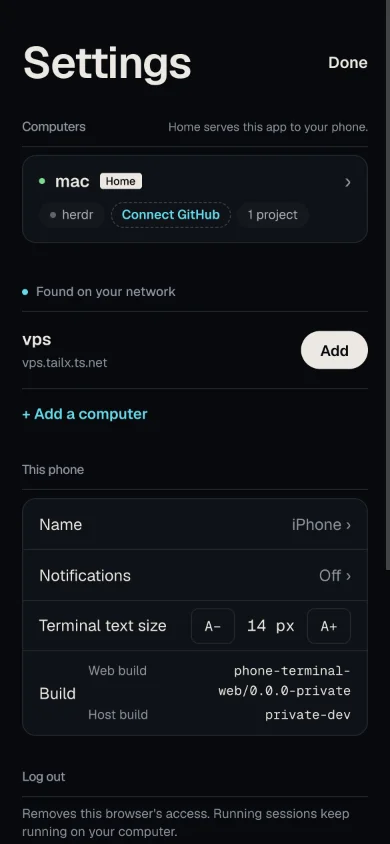
-
Check the sheet. Add this computer? shows the Address, Machine and Owner that home found in its Tailscale status. Tap Add vps, then Continue.
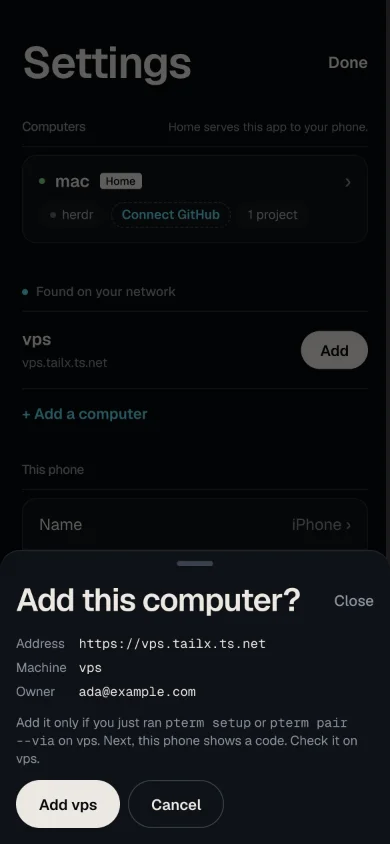
-
Compare the code and the name. The app asks Does vps show this code? and says “If it matches, type y in the terminal on vps.” On vps, the prompt says:
Phone "iPhone" wants to add this computer (vps) to your Termivoa app on mac.mac is https://mac.tailx.ts.net (owner ada@example.com).Approve only if your phone shows 742-172 and says "type y in the terminal on vps". [y/N]Type
yonly if it names this computer (vps), home’s address is the one your app opens, and the phone shows the same code. The app says vps is added, and vps saysDone. vps is in your Termivoa app on mac. Open the app and tap it.With a machine name longer than 12 characters it addsTip: give it a short name in the app: Settings, tap the computer, then Rename.The app now has Rename on the computer’s page: in Settings, tap the vps card.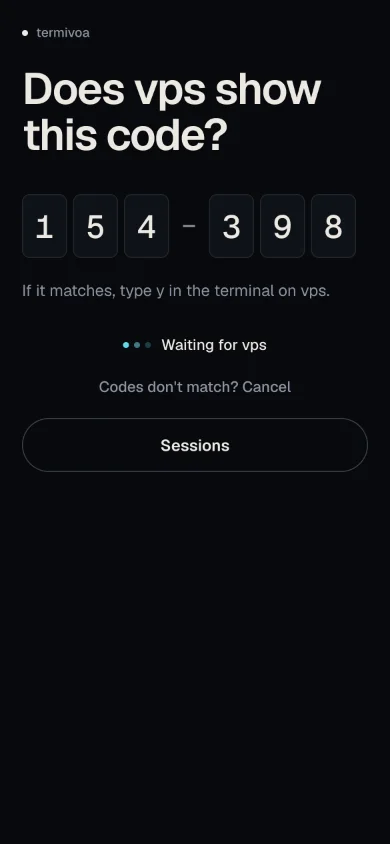
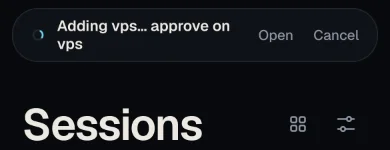
You can leave the page while you approve: tap Sessions, or Back to terminal when you opened the link from a terminal in the app (to type y there). A bar says Adding vps… approve on vps until it is done.
| Found on your network shows | Meaning |
|---|---|
vps · vps.tailx.ts.net · Add |
vps waits to be added. The app checks the list every 5 seconds while Settings is open. |
| “To add another computer, run pterm setup on it, or pterm pair –via mac if it is already set up. It shows here while it waits.” | No computer waits now. |
| “mac cannot read its Tailscale status. Check Tailscale on mac.” | Home cannot see your tailnet now. Check Tailscale on home. |
A row goes away when that computer stops waiting or becomes another Tailscale machine. It is also hidden while that computer is in your list and answers. A computer that lost this phone’s access (for example after pterm revoke there) shows again, so you can add it again from Found.
| If… | Then |
|---|---|
| No Add row shows up | Use the link: see How do I scan or paste the link? and Troubleshooting. |
| The codes are different, or the prompt names another computer | Type n, then tap Codes don’t match? Cancel. |
| You change your mind | Tap Cancel on the sheet, the page or the bar. After a y, the app also signs out of vps. |
| The app says “vps stopped waiting. On vps run pterm pair –via mac, then tap Add again.” | vps no longer waits. Run pterm pair --via mac on vps, then tap Add again. |
| A computer is a tagged Tailscale node | Add does not work for it. Check its tags, then run pterm pair --via mac --allow-tagged and use the QR code or the link. |
| You want to approve later | pterm pair --via mac --no-wait, then pterm pair pending and pterm pair approve <pending-id>. This sends nothing to home: use the link. |
Other ways: the link and the QR code
Section titled “Other ways: the link and the QR code”When home got the invite, pterm pair --via shows the QR code and the link only when you press Enter (“No Add button? Press Enter to show a QR code and a link.”). When nothing reached home, it prints them at once. Either way they come under “No Add button? In the app tap + Add a computer → Scan QR, or paste the link. They work for 2 minutes:”. They work once, for two minutes from the start of the command. When shown ones expire, the computer says “The QR code and link above expired. Add in the app still works.” and keeps waiting; Enter after that says “The QR code and link expired (they work for 2 minutes). Add in the app still works; for a new link, press Ctrl+C and run pterm pair –via mac again.” If nothing reached home, the command ends when they expire; run it again.
- Tap it, if you ran the command in a Termivoa session (for example after
ssh vps). - Scan it or paste it: Settings → + Add a computer, then Scan QR or Paste link. See How do I scan or paste the link?
Then check the sheet and compare the code as in steps 3 and 4. Without a terminal (for example with piped input), pterm pair --via sends nothing to home and waits only for the link, for two minutes.
| If… | Then |
|---|---|
| The link opened in Safari or the phone’s Camera app | That page says This page cannot add the computer. Scan the QR code in the app instead (Settings → + Add a computer → Scan QR), or tap Copy link there and use Paste link in the app. Safari never adds the computer. |
How do I scan or paste the link?
Section titled “How do I scan or paste the link?”In Settings, under the Computers cards, tap + Add a computer. With two or more computers, + Add a computer in the side menu opens the same choices. Termivoa shows two choices: Scan QR and Paste link.
| Choice | What you do | What the app does |
|---|---|---|
| Scan QR | Allow the camera, then point it at the QR code that pterm pair --via printed. |
Reads the code inside the app, stops the camera, and opens Add this computer? |
| Paste link | Paste the whole link, then tap Check link. | Checks the link and opens Add this computer? |
Both choices give the app the same link, and the app checks it the same way. A scan never adds a computer by itself: you still check the Address, Machine and Owner, tap Add vps, tap Continue, and compare the code.
Scan with Scan QR in the app, not with the phone’s Camera app. The Camera app opens the link in Safari, which is not signed in to your app and cannot add the computer.
| The app says | Meaning |
|---|---|
| Allow the camera to scan the QR code. | The phone asks for the camera. Tap Allow. |
| Point the camera at the QR code that pterm pair –via printed. | The camera is on. Hold the code inside the picture. |
| The camera is blocked. … | Allow the camera for the Termivoa address in your phone’s or browser’s settings, then tap Scan QR again. Or tap Paste link. |
| No camera found. Paste the link. | Tap Paste link. |
| This is not an add-computer link. … | The QR code is not from pterm pair --via. Scan the right code. |
| This add-computer link expired or was already used. | Run pterm pair --via mac again and scan the new code. |
The camera stops when the app reads a code, when you tap Cancel, and when you leave the app. The pictures stay on your phone: the app reads them there and saves nothing. See Security.
What changes in the app?
Section titled “What changes in the app?”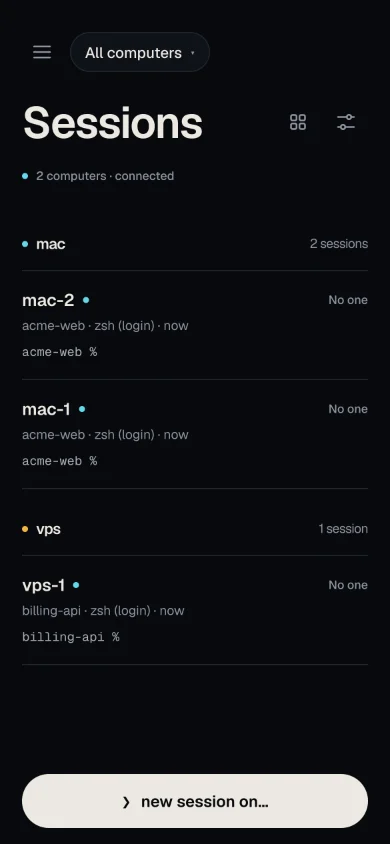
| Screen | With 2 or more computers |
|---|---|
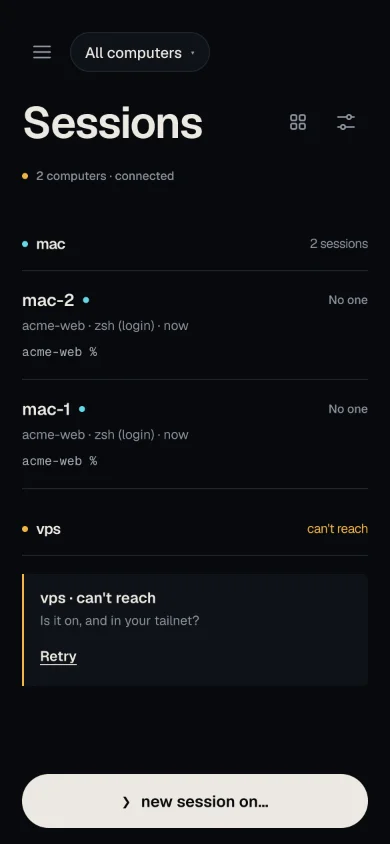
| Sessions | A menu button (≡) and a computer pill (All computers, or the chosen computer such as ● mac) at the top open the side menu. In All computers, each computer’s sessions and herdr projects are under a header with its name and state. Waiting sessions come first. |
| New session | ❯ new session on… and a Computer row pick where it runs. Projects and shells come from that computer. |
| Wall | Tiles from all computers. At most 4 are live at once (5 updates per second each); the rest show Paused. |
| Live, Changes, Files | Work the same on every computer. |
| Dev-server preview | Works per computer. Each computer answers the preview question in pterm setup itself. A computer on an older Termivoa shows no Preview ready chip. The bar over a page from another computer shows vps · untrusted page. |
| Notifications | Every computer sends them. One switch in Settings → Notifications controls all. The title and text of a notification from another computer start with its name (vps · …) and a tap opens that session. |
With one computer, there is no side menu and no computer pill.
How do I switch between computers?
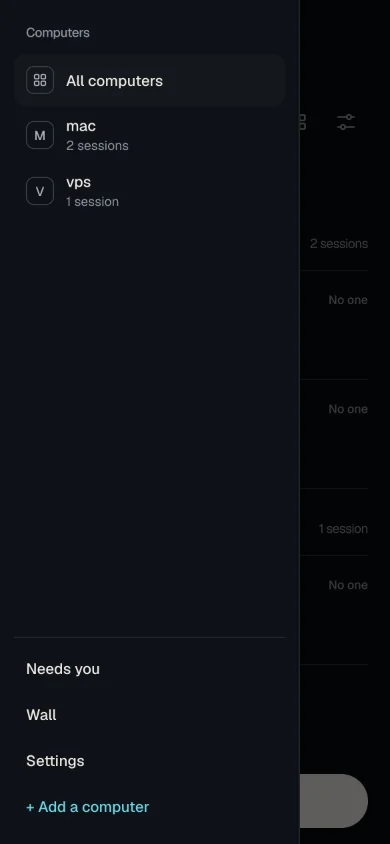
Section titled “How do I switch between computers?”Next beta. Tap the menu button (≡) or the computer pill at the top of Sessions. The side menu opens from the left.
| Row | What it does |
|---|---|
| All computers | Shows every computer. An amber number counts what needs you on all of them. |
| A computer, such as mac | Shows only that computer in Sessions, herdr and Needs you. The row has its state, for example 2 sessions · 1 working, can’t reach or pair again, and an amber number for what needs you there. |
| Needs you | Opens the Needs you tab for all computers, with its count. |
| Wall | Opens the Wall. |
| Settings | Opens Settings. |
| + Add a computer | Opens Settings with Scan QR and Paste link. See How do I scan or paste the link? |
To close the side menu without a choice, tap outside it or press Escape. The tabs under the title are Sessions, herdr (when a computer has herdr) and Needs you (while something waits).
When you look at one computer and another computer needs you, an amber pill with that computer’s name and count shows next to the computer pill. Tap it to go to that computer.
Where are a computer’s settings?
Section titled “Where are a computer’s settings?”Next beta. Open Settings. Settings has a main page and one page for each computer.
| Main page part | What it has |
|---|---|
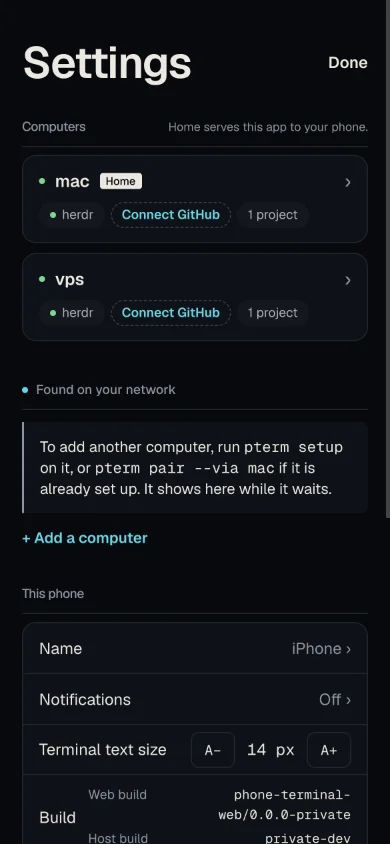
| Computers | One card for each computer, home first, with Home on home’s card. The chips on a card show herdr (green dot: running), GitHub (green dot: connected; Connect GitHub: not connected; git missing) and the number of projects. Tap a card to open that computer’s page. |
| Found on your network and + Add a computer | Add another computer. See How do I add a computer? |
| This phone | Name (this phone’s name in pterm devices), Notifications, Terminal text size, Build and Log out. |
A computer that cannot be reached has a dashed card with Can’t reach and a Check again button.
| Computer page part | What it has |
|---|---|
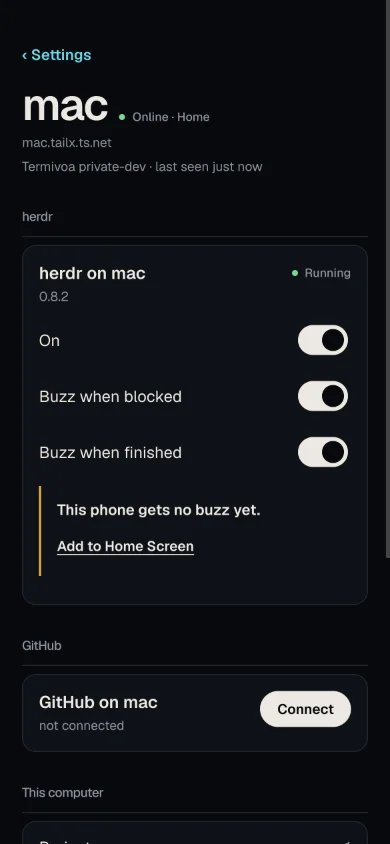
| Top | ‹ Settings (back to the main page), the computer’s name, its state, address and Termivoa version. |
| herdr | The herdr switches On, Buzz when blocked and Buzz when finished, or Install herdr or Start herdr. |
| GitHub | Connect, Set up a repository and Disconnect. See GitHub. |
| This computer | Projects (the count), Check again, Rename and Remove. Home has no Rename or Remove. |
The phone’s Back button goes from a computer’s page to the main page.
What if a computer cannot be reached?
Section titled “What if a computer cannot be reached?”The other computers keep working. The one that does not answer gets its own row.
| Row | Meaning | Do this |
|---|---|---|
| vps · can’t reach and Last seen 3 h ago. Is it on, and in your tailnet? | Nothing answered from vps. The app cannot see why, so it asks. | Check that vps is on and in your tailnet, then tap Retry. |
| vps · can’t reach and This app page is out of date. Close the app and open it again. | The app page on your phone does not allow vps yet. The app already reloaded once. | Close the app fully and open it again. |
| Connecting to vps… and Just added. Its sessions show in a moment. | vps was added a moment ago and does not answer yet. The app tries again by itself for about 5 seconds. | Wait. If it still does not answer, the row says vps · can’t reach. |
| vps · pair again | vps no longer accepts this phone (revoked, logged out, expired, or Tailscale changed on home). | Run pterm pair --via mac on vps and add it again. |
| Update Termivoa on vps | Termivoa on vps is too old for this app. | Update Termivoa on vps. |
If a preview of that computer is open, the preview is removed and the text shows in its place: vps · can’t reach, vps · pair again or Update Termivoa on vps.
If home cannot be reached, the app still opens from its saved copy and reaches the peers.
How do I see if a computer is healthy?
Section titled “How do I see if a computer is healthy?”Open Settings, then tap the computer’s card. Its page shows the Termivoa version it runs and when the phone last got an answer from it.
| You see | Meaning |
|---|---|
| Home next to a name | This computer is home. Under the Computers heading the app says Home serves this app to your phone. |
| Termivoa 0.1.0-beta.3+1a2b3c4d5e6f · last seen just now | The version on that computer, and how long ago it answered (just now, 5 min ago, 3 h ago). |
| vps · can’t reach and Last seen 3 h ago. Is it on, and in your tailnet? | vps does not answer now. The phone keeps the time of its last answer until you close the app. The question shows only when nothing answered at all. |
| Check again | Asks that one computer now. The button says Checking…, then vps answered in 0.2 s. or why it did not. |
Check again is on every computer’s page. A computer that says Can’t reach also has it on its card.
How do I update the computers?
Section titled “How do I update the computers?”One at a time, in any order. The app refuses only a computer that is too old (“Update Termivoa on vps”). After you update home, tap update on the Sessions list, or close and open the app.
How do I rename, remove or log out?
Section titled “How do I rename, remove or log out?”| Action | Where | What happens |
|---|---|---|
| Rename | Settings → the computer’s card → Rename | Changes the name on this phone only. |
| Remove | Settings → the computer’s card → Remove | Signs this phone out of vps first; its sessions keep running. If vps cannot be reached, run pterm revoke <device-id> on vps. |
| Log out | Settings → Log out | Signs out of every computer it can reach, and names the ones it could not. Run pterm revoke there. |
| Remove for every phone | On home: pterm computers remove https://vps.tailx.ts.net |
Takes vps off every phone’s list. Run pterm revoke on vps too. |
Home cannot be renamed or removed here.
What do I do if home was hacked?
Section titled “What do I do if home was hacked?”- On every peer, run
pterm revoke --via https://mac.tailx.ts.netand typey. - Clean or replace home.
- Remove the app’s data from the phone:
- iPhone: delete the Termivoa app from the Home Screen.
- Android: remove the app, then in Chrome go to Settings → Site settings → All sites, pick home’s address and delete its data.
- Add home to the Home Screen again, pair your phone, and add each peer again.
Every step matters: a hacked home can leave a hidden background script on the phone, and can hold a peer cookie for up to 30 days. Step 1 ends that cookie.
What do I do if I lose my phone?
Section titled “What do I do if I lose my phone?”- On home:
pterm devices, thenpterm revoke <device-id>. It lists the other computers the phone used. - On each of them:
pterm devices(the VIA column shows home), thenpterm revoke <device-id>.
What are the limits?
Section titled “What are the limits?”| Limit | Why |
|---|---|
| One tailnet, one Tailscale user | Each computer checks that home belongs to you. |
| At most 8 computers plus home | For each phone. |
| WSL cannot be a peer | Tailscale usually runs on Windows, so WSL cannot check the tailnet. |
| A preview from another computer is an untrusted page | That computer chooses the page. See What does “untrusted page” mean? |
| Reinstalling Tailscale | On home: peers show pair again. On a peer: home drops it from the list; add it again. |
Is it tested on a real phone?
Section titled “Is it tested on a real phone?”Not yet. Chrome and WebKit pass every automated check with two test computers, but the check on a real iPhone and Android phone has not run. If it fails on iPhone, the design changes before release.