Sessions that stay
Your terminals live on your computer. Lock the phone, lose signal, come back tomorrow. It is all still there.
reconnects in seconds/tɜːr·mɪ·ˈvoʊ·ə/ · noun
pterm setup
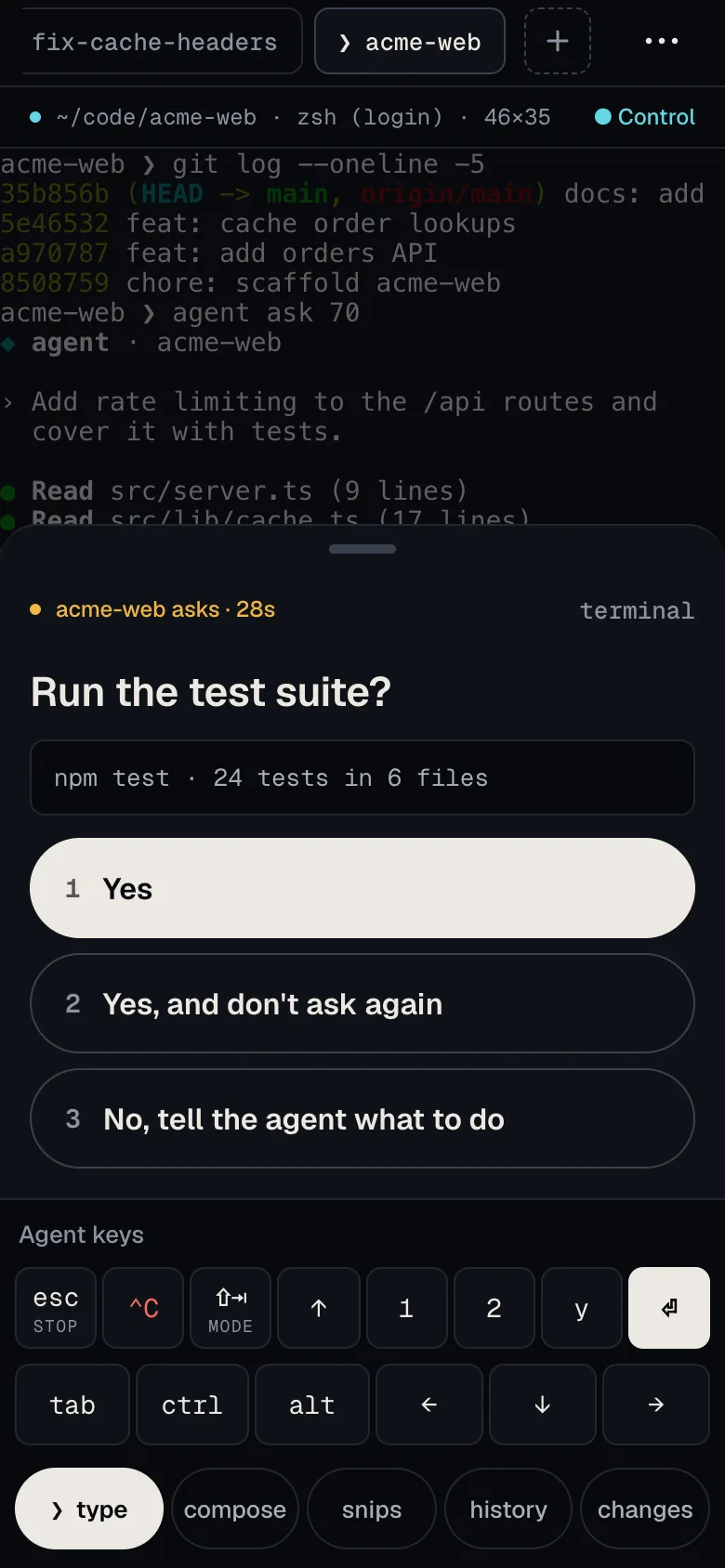
Termivoa runs on your Mac or Linux box and is reached only through your own Tailscale network. There is no Termivoa server, no account and no open port.
$ pterm doctor
broker    ✓ 3 sessions
gateway   ✓ 127.0.0.1:8787
tailscale ✓ serve · tailnet only
funnel    ✗ off (never)
What your phone sees
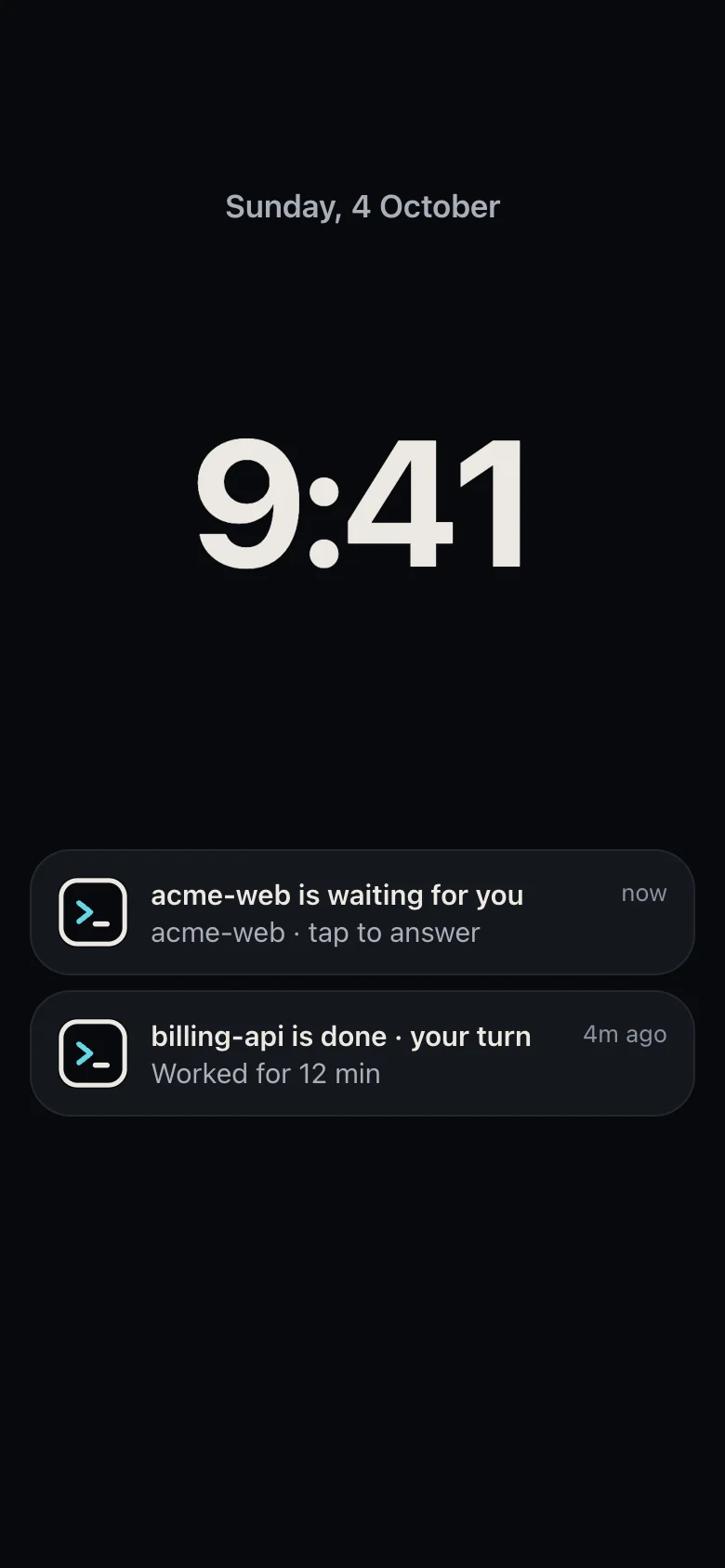
A notification when an agent needs you or finishes. Never the terminal text itself.
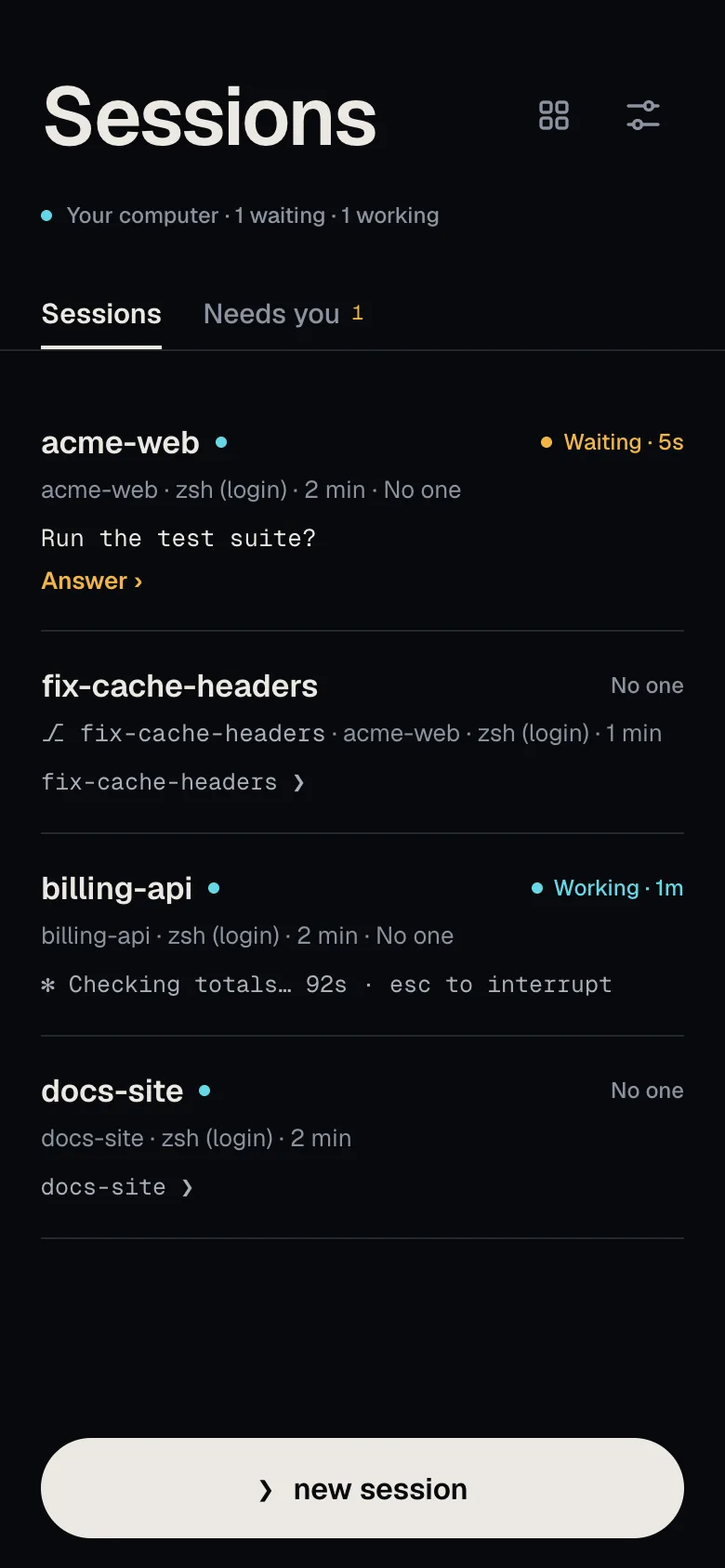
Waiting, working or your turn. The folder it is in, and how long it has been.
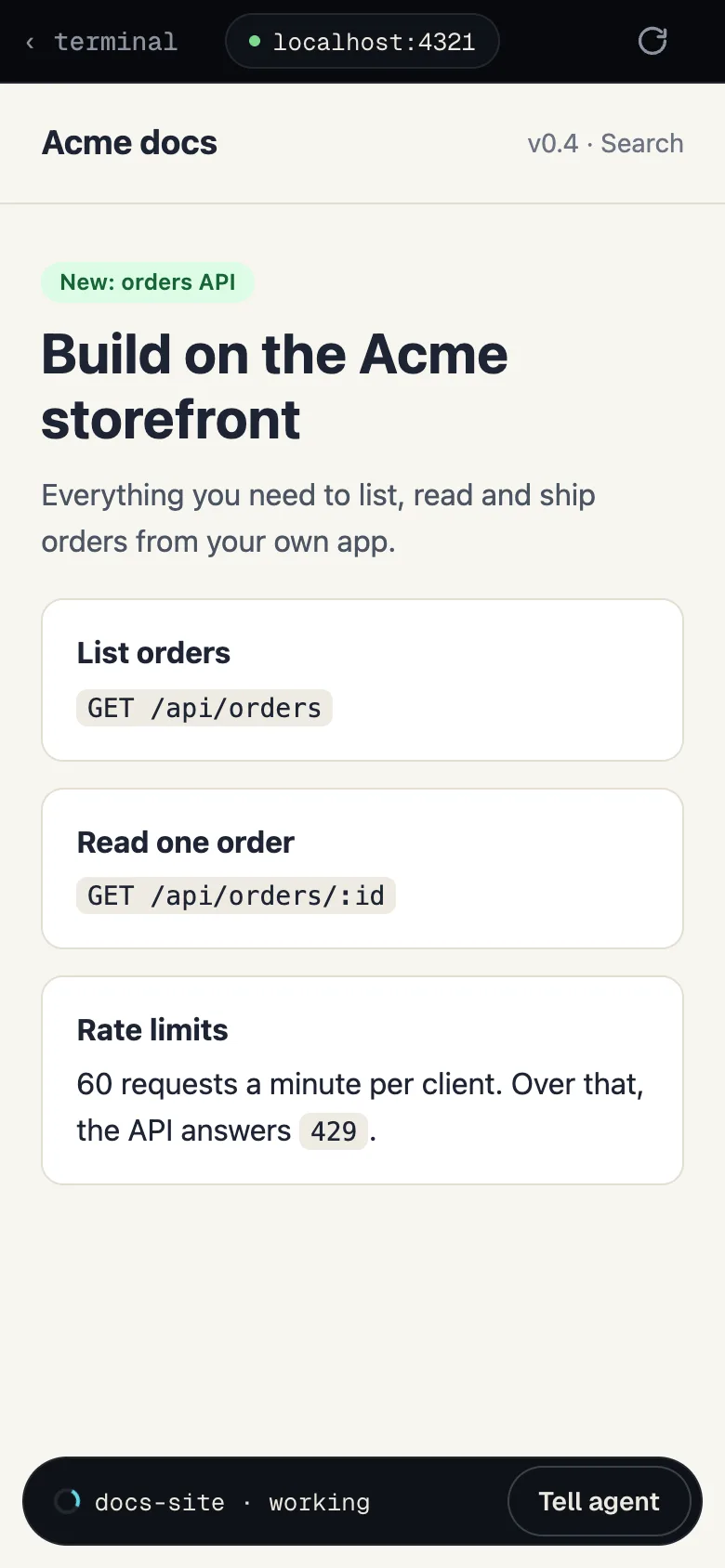
Open the dev server running in that session, right on your phone, still private.
Your terminals live on your computer. Lock the phone, lose signal, come back tomorrow. It is all still there.
reconnects in secondsClaude Code or Codex asks, you tap. Termivoa checks the question is still on screen before it presses a key.
never a stale answerPut a GitHub repository on any of your computers with one tap. Start each task in its own worktree, on a fresh branch from main. See every file the agent touched, tick the ones you want, commit, push. Never forced.
one branch per taskOpen a session and see at once how long the agent worked, what it changed, and whether it waits for you.
two seconds to catch upSend the agent a photo of the bug, or say the prompt out loud. Photos lose their location data first.
thumbs optionalOne small Go program on your computer. It starts at login and needs no Node, no Docker, no cloud. All your computers in one app.
one binary, that's itSetup shows every change before it makes it and asks once. Scan the code, compare six digits, type y. Your phone is paired.
Run pterm setup on your computer
$ pterm setup
Termivoa will:
  · start at login          launchd
  · share on your tailnet   tailscale serve
  · never use Funnel
Continue? [y/N] y

✓ broker    running · 0 sessions
✓ gateway   https://studio.tail4e2.ts.net
Set up a second computer and it shows up in your app on its own. Tap Add, compare six digits, type y. No link, no QR code to carry over.
Run pterm setup on the new computer
vps $ pterm pair --via mac Sent to mac. Waiting for your phone… Approve only if your phone shows 742-172 [y/N] y Done. vps is in your Termivoa app on mac.no links. no QR. just y.
Providers
Termivoa finds the workspace tool on your computer and shows every project, worktree and agent state on your phone. herdr works today. More tools can follow.
Tap a provider to read its guide
 herdrProjects, worktrees and agents
in private beta now. built by Anurag, who got tired of walking back to the desk to type “y”.