
Pair your phone
Termivoa pairs a phone with a one-time QR code from pterm pair and a 6-digit code that you check on both screens.
Pair a phone
Section titled “Pair a phone”pterm setup ends with pairing. At other times, run pterm pair.
-
Scan the QR code with the phone camera and open the link.
-
Name the phone, for example “My iPhone”, and tap Pair this device.
-
The phone shows a code, such as
123-456. Your computer asks:Approve only if the phone shows exactly this code.Phone "My iPhone" shows code 123-456. Approve? [y/N] -
If the codes match, type
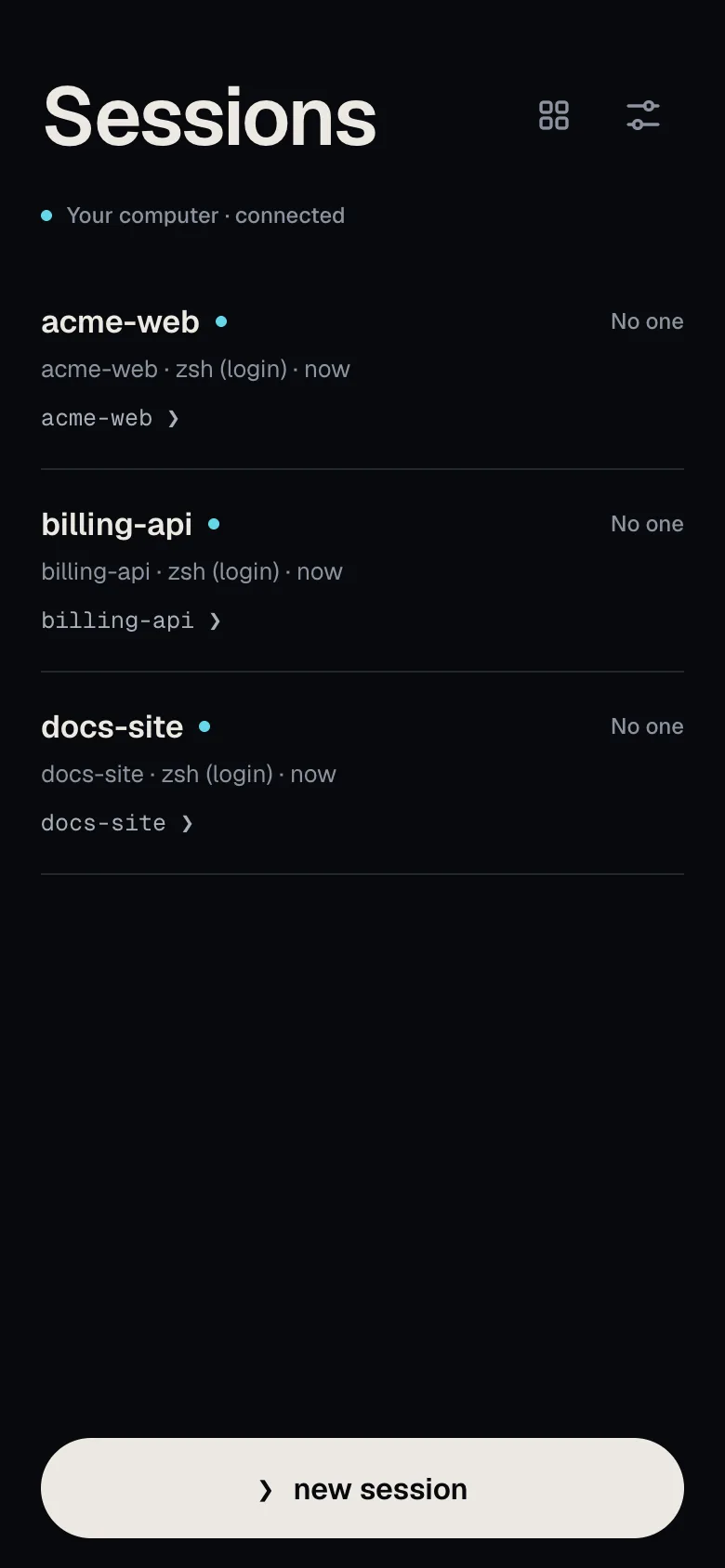
yand press Enter. The phone opens the Sessions list.
If the codes are different, type n, then tap Codes don’t match? Cancel on the phone. The phone stays unpaired.
pterm never approves a phone without your answer.
To pair another phone, run pterm pair again. Each phone gets its own access.
Approve later
Section titled “Approve later”pterm pair --no-wait prints the link and returns. Later, list waiting phones and their codes, compare, and approve one:
pterm pair pendingpterm pair approve <pending-id>--no-qr prints only the link. --origin <url> uses another address for this link.
Add to the Home Screen
Section titled “Add to the Home Screen”On iPhone, in Safari, tap Share, then Add to Home Screen. Termivoa then opens like an app. iPhone needs this for Notifications. On Android, Chrome can also add it to the home screen.
Add another computer
Section titled “Add another computer”Pair the phone with one computer first; it becomes home. To use more computers from the same app, run pterm pair --via <home> on each other computer, then tap Add next to it in Settings → Found on your network, or scan, paste or tap its link in the app. You check the code the same way. See Use several computers.
See and rename your phones
Section titled “See and rename your phones”pterm devices lists paired phones, their status and last use.
Rename one with pterm devices rename <device-id> <label>, or on the phone in Settings → This phone → Name.
Remove a phone
Section titled “Remove a phone”If you lose a phone or stop using it:
- Find its ID with
pterm devices. - Run
pterm revoke <device-id>. - Type
yto confirm.
The phone loses access at once, also on open connections, and stops getting notifications. On the phone itself, Settings → Log out removes its access.
If the phone used several computers, revoke it on each computer. On home, pterm revoke lists them. Log out signs the phone out of every computer it can reach, and names the ones it could not; run pterm revoke there.
When must a phone pair again?
Section titled “When must a phone pair again?”After 30 days from pairing, or after 7 days without use. The phone then shows the pairing screen; run pterm pair again.
Common questions
Section titled “Common questions”What if I press Enter by mistake at the approve question?
Section titled “What if I press Enter by mistake at the approve question?”Enter means no. Run pterm pair and pair it again.
Does logging out stop my sessions?
Section titled “Does logging out stop my sessions?”No. Log out only removes that phone’s access.